Why Authenticator Backups Matter
Two-factor authentication stops unauthorized access—which means if your device dies, gets stolen, or has its browser profile wiped, the login screen treats you identically to an intruder unless you planned an escape hatch.
First Layer: Website One-Time Recovery Codes
Whenever you turn on 2FA on GitHub, AWS, Google, or Shopify, the service displays 8 to 16 single-use recovery codes. Authenticator backups NEVER replace these website recovery codes. Always print or store recovery codes inside a separate physical safe or encrypted vault.
Encrypted vs. Plain-Text Authenticator Exports
| Backup Type | Security Profile | When Appropriate |
|---|---|---|
| Encrypted JSON Backup (Recommended) | Secrets locked with a strong user-chosen passphrase | Long-term storage on USB drives, offline hard drives, or personal archives |
| Plain-Text JSON / QR Screenshot | Anyone who reads the file can immediately compute your 2FA codes | Brief ephemeral migration inside trusted offline air-gapped workflows—delete right after |
| No Backup (Local Only) | Device failure permanently destroys saved TOTP seeds | Never recommended for accounts lacking saved recovery codes |
User-Controlled Backup Export & Restore in Secure TOTP
Because Secure TOTP Authenticator includes no cloud sync or remote server storage, you hold full custody of your backups. Inside the Export backup panel, select Encrypted (Recommended) and set a unique passphrase to save a .json file locally—or use Plain text only with caution when needed.
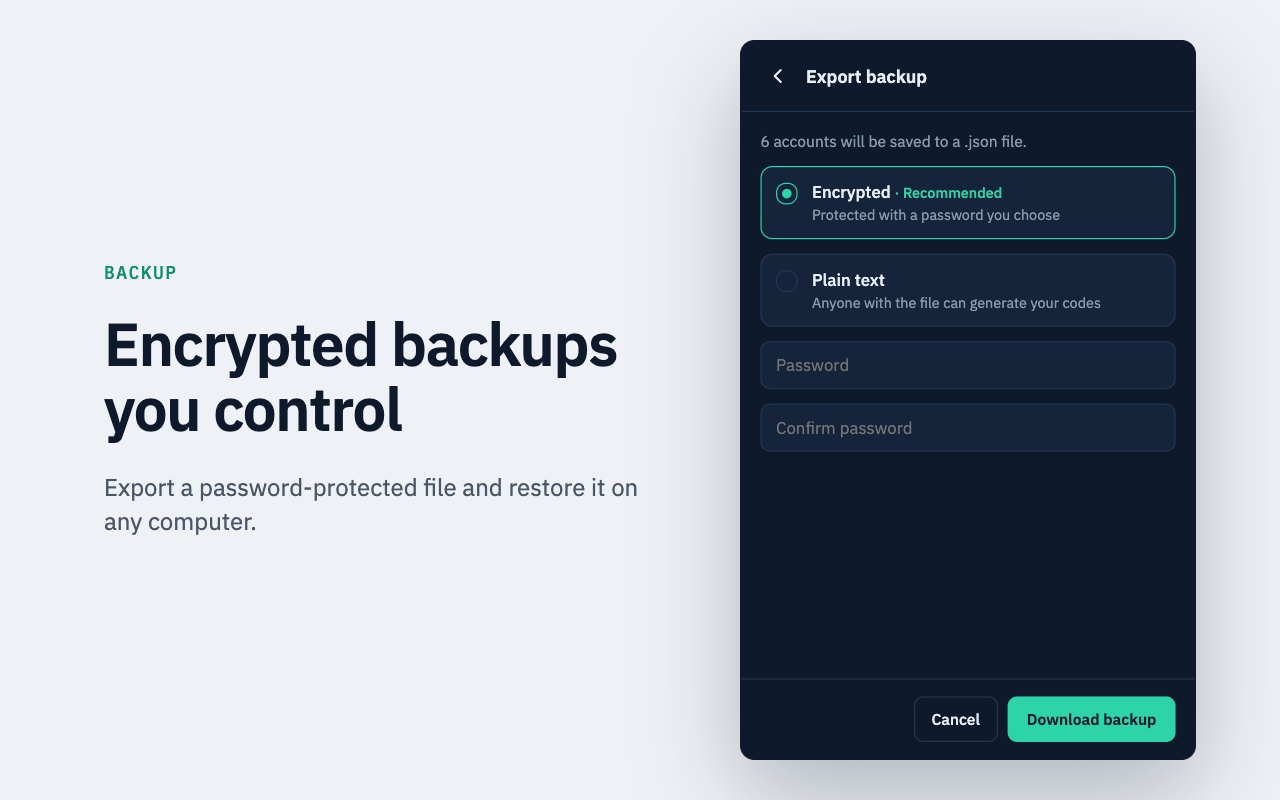
When restoring that `.json` file on a fresh browser profile or new PC, Secure TOTP detects existing tokens and automatically skips duplicates.
Do not email plain-text backups to yourself or save your encryption password inside the exact same folder as your .json backup file. Store the encrypted file on a separate USB key or encrypted archive and keep its password in your primary vault or physical safe.