Evaluating an Independent Google Authenticator Alternative
Google Authenticator works well for mobile-first logins, but it lacks an official desktop browser workflow, leaves some developers wanting explicit local file backups, and relies primarily on mobile entry. Compare how Secure TOTP Authenticator differs so you can decide which tool—or combination—matches your threat model.
Side-by-Side Feature & Custody Comparison
| Capability / Design Choice | Secure TOTP Authenticator | Google Authenticator |
|---|---|---|
| Primary Platform | Google Chrome Extension (Windows, macOS, Linux, ChromeOS) | Mobile apps (Android & iOS); no official Chrome extension |
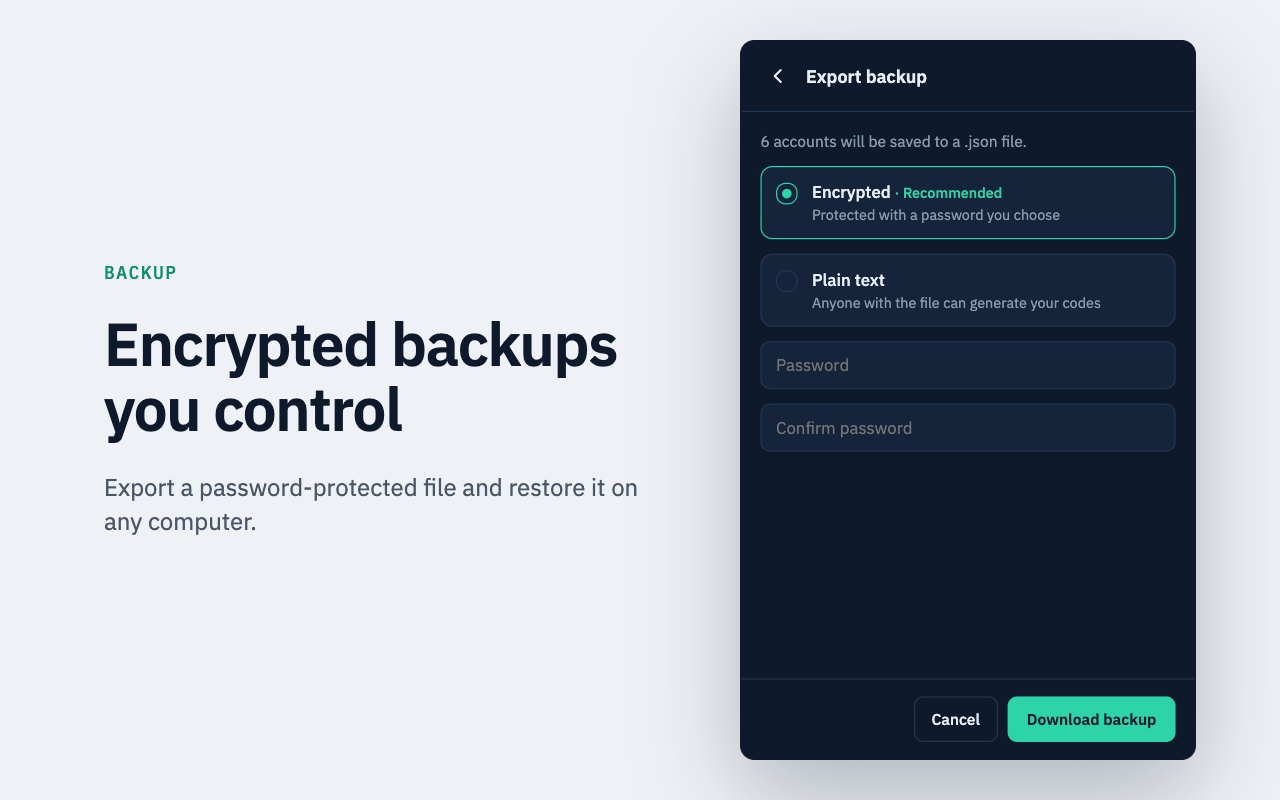
| Backup Mechanism | Exportable password-encrypted `.json` file (or warned plain-text file) stored wherever you choose | Google Account cloud sync or manual transfer QR codes |
| Cloud Account Needed? | No registration, email, or cloud sync currently | Optional offline use or Google Account cloud sync |
| Desktop Productivity | One-click clipboard copy, account search, copy counter, QR screenshot paste | Camera scan on phone; manual typing on desktop |
| Algorithms & Windows | SHA-1, SHA-256, SHA-512 · 6 or 8 digits · 30s or 60s | Standard TOTP & HOTP configurations on mobile |
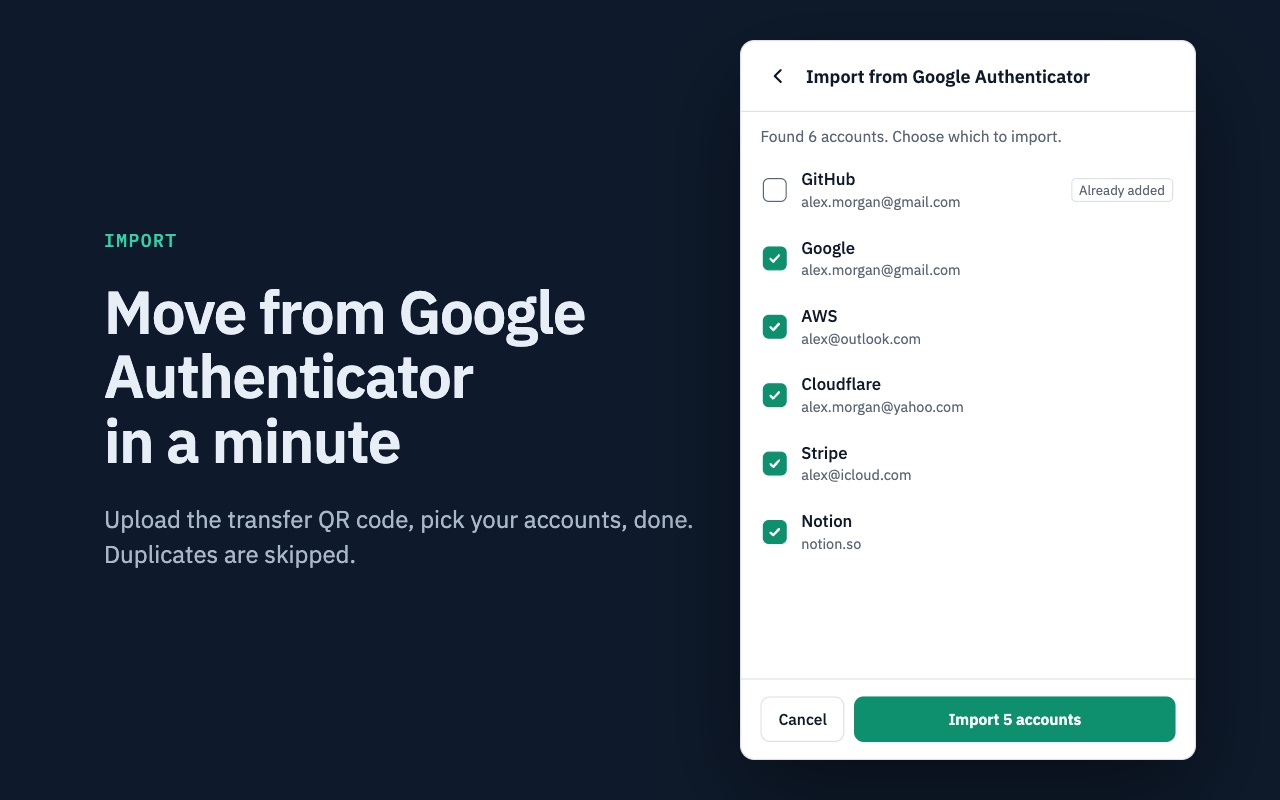
| Google Auth Migration | Imports transfer QR selectively and skips existing duplicates | Exports transfer QR batches to mobile or compatible tools |
When Secure TOTP Fits Better
- You spend most of your workday signing into web consoles inside Chrome.
- You want encrypted, portable `.json` backup files you can store on offline drives rather than syncing tokens into a cloud ecosystem.
- You work with SHA-256, SHA-512, or 8-digit TOTP tokens or frequently add accounts via desktop QR screenshots.
When Mobile Apps Fit Better
- • You strictly require physical isolation between your laptop browser and your second authentication factor for high-risk root accounts.
- • You log in mainly from mobile apps or across shared/unmanaged desktop computers.
- • You prefer automatic cloud synchronization across phones without manually managing encrypted local backup files.

Generate 2FA Codes Directly in Chrome
Offline TOTP code generation, one-click copying, Google Authenticator QR import, and encrypted JSON backups—without creating a cloud account.
Frequently Asked Questions
Direct answers covering compatibility, security boundaries, offline behavior, and backups.
Related Secure TOTP Guides & Resources
Explore specialized guides on desktop 2FA, offline TOTP generation, and backup security.
Extension Workflows & Compatibility
Generate 2FA codes inside Chrome and import selected accounts from Google Authenticator transfer QR codes without removing them from your phone.
Run an RFC 6238 desktop authenticator inside Chrome on Windows, macOS, or Linux with fast search, one-click copying, and computer security best practices.
Understand how Secure TOTP computes 6- and 8-digit verification codes locally using your device clock and secret key—even completely offline.
2FA & TOTP Educational Guides
Walk through exporting transfer QR codes from Google Authenticator, importing selected tokens into Secure TOTP, and keeping phone copies intact.
Why backups matter, how recovery codes differ from TOTP exports, encrypted vs plain-text .json files, and safe offline backup storage.
An objective threat-model review covering local storage, OS disk encryption, malware exposure, single-device risk, and recovery code hygiene.
Practical recovery paths when a phone or laptop is lost or wiped: using provider recovery codes, encrypted backups, and prevention habits.
Take Direct Control of Your Local 2FA Backups
Install Secure TOTP Authenticator free for Chrome—no account required.
Add to Chrome — Free