 Independent Chrome 2FA Extension · Free
Secure TOTP Authenticator for Desktop Chrome
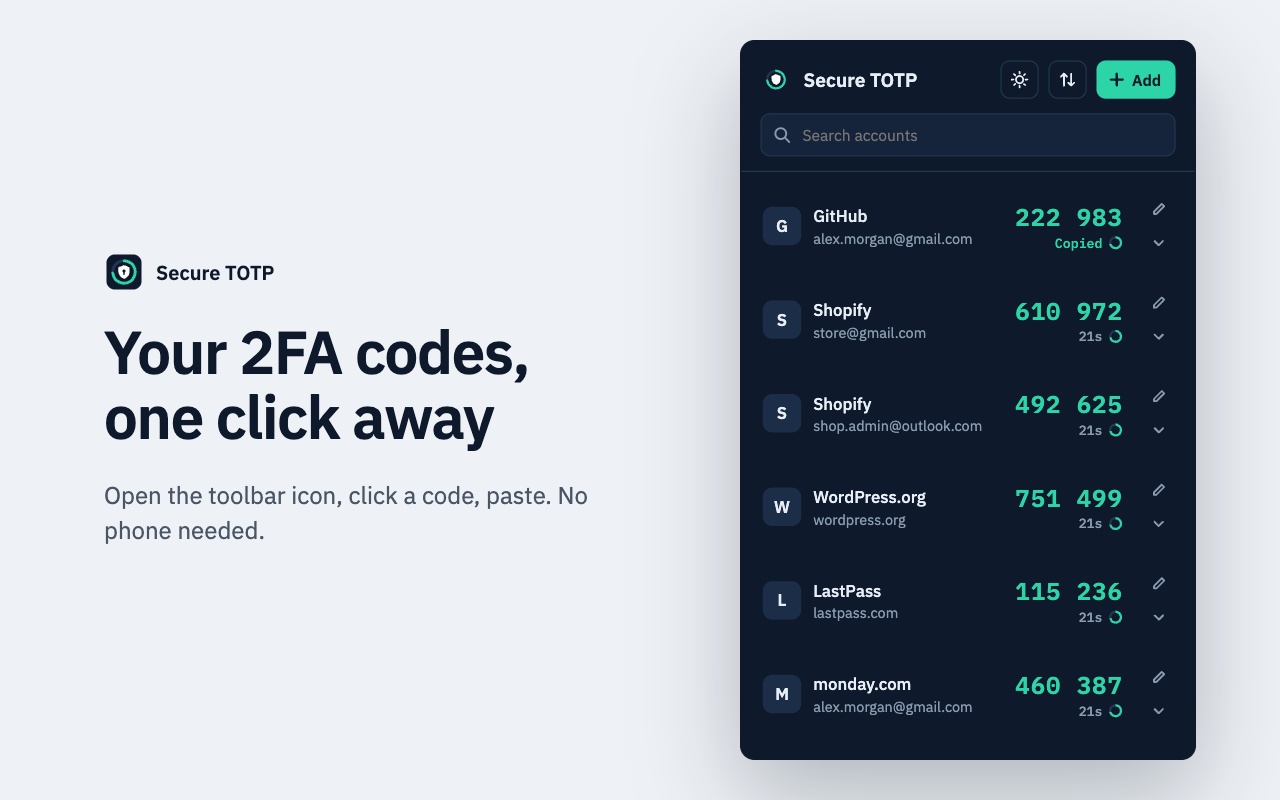
Generate standard 2FA verification codes right from your Chrome toolbar—even when you are completely offline. Search accounts fast, import tokens from Google Authenticator export QR codes, copy codes in a single click, and export password-protected encrypted JSON backups that stay under your control.
Secure TOTP Authenticator is an independent browser extension developed by GreeLogix. It is not affiliated with, endorsed by, or officially connected to Google or Google Authenticator.
What Is Secure TOTP Authenticator?
Secure TOTP Authenticator is a lightweight browser extension built on the open RFC 6238 time-based one-time password (TOTP) specification. Instead of unlocking your phone, locating a mobile app, and manually re-typing 6 digits on every login, you can generate and copy those exact same verification codes directly from Chrome on Windows, macOS, Linux, or ChromeOS.
Unlike cloud password suites that require creating an online vault account, Secure TOTP runs strictly on your computer with zero registration. Every token is calculated locally using your browser's clock and stored secret key—with full user control over local backup files.
Who Should Use Secure TOTP?
Quickly copy 2FA codes for GitHub, AWS, Cloudflare, Vercel, and staging consoles without switching devices mid-deployment.
Filter dozens of Shopify, WordPress, Stripe, or client portals instantly using built-in search and edit-friendly account labels.
Generate 2FA tokens locally with zero account registration, zero telemetry collection, and password-encrypted .json backups stored where you decide.
How Secure TOTP Works in 3 Steps
Move from installation to your first copied 2FA code in under a minute.
Install & Pin in Chrome
Add Secure TOTP Authenticator from the Chrome Web Store and pin the icon to your toolbar. No sign-up, email, or master cloud account is required.
Add or Import Accounts
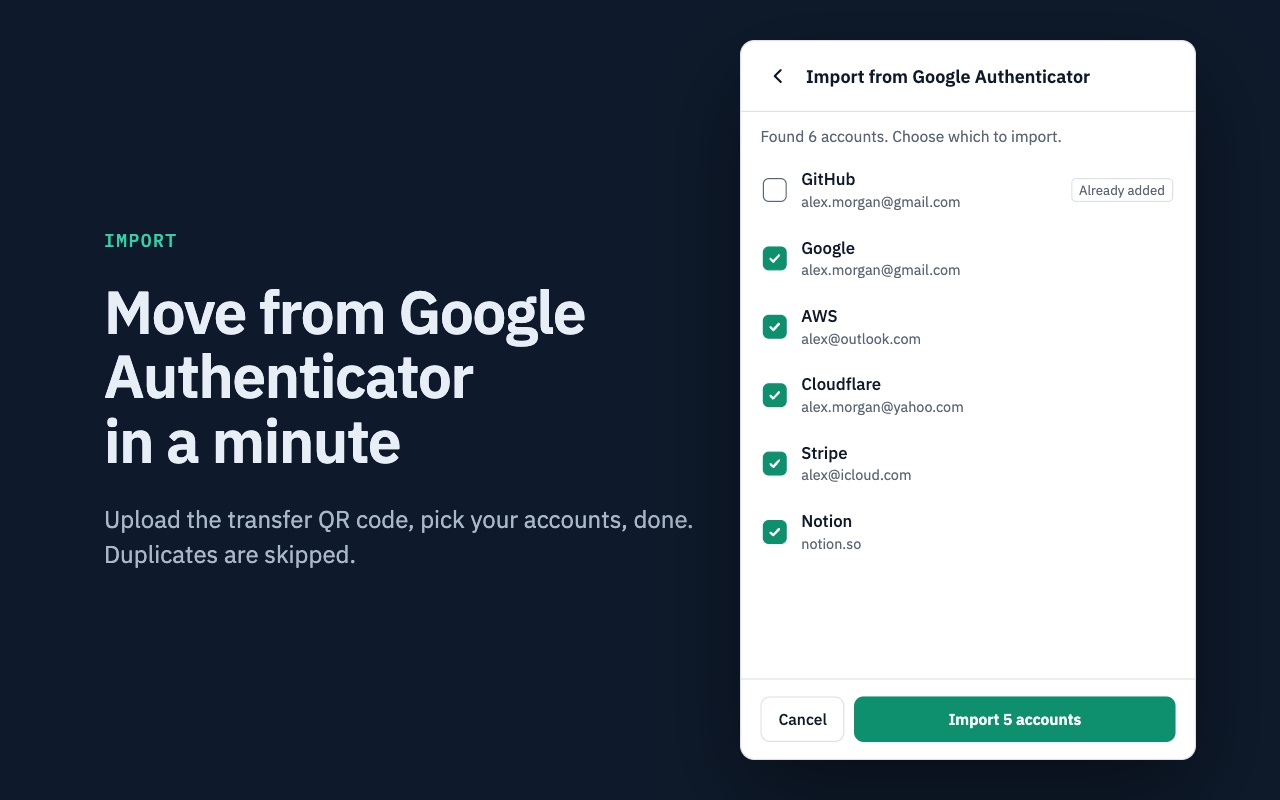
Upload, drag, or paste a website 2FA QR screenshot, type a Base32 secret manually, or bulk-import selected tokens from a Google Authenticator export QR code.
Copy Codes & Back Up Locally
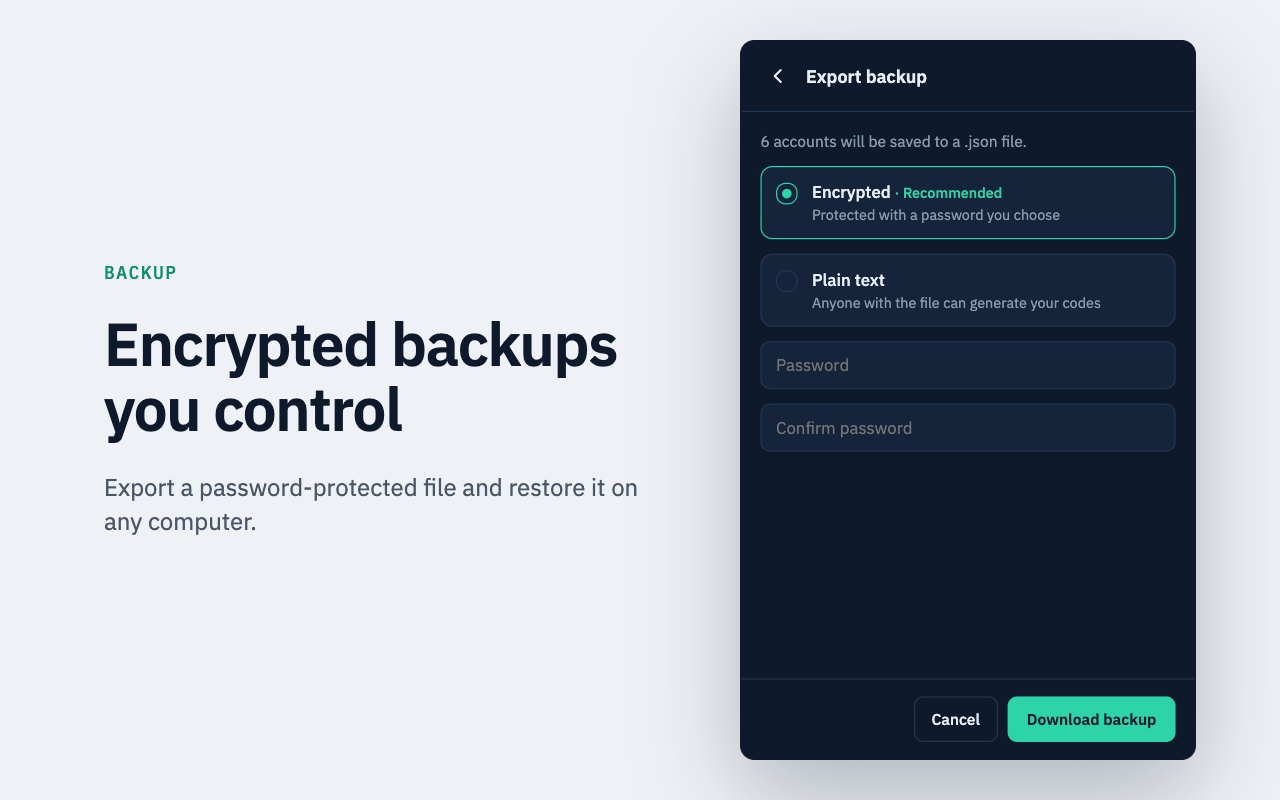
Click any generated 6- or 8-digit OTP to copy it to your clipboard, and download a password-encrypted .json backup to store safely offline.
Inside Secure TOTP Authenticator
Inspect every screen of the extension—from one-click code copying and Google Authenticator import to secret reveal controls and encrypted JSON backup exports.
Core Capabilities & Technical Standards
One-Click Copy & Search
Filter accounts instantly and click any OTP to copy it straight to your clipboard with visual confirmation and live 30s/60s countdown rings.
100% Offline Code Generation
All verification codes compute locally inside your browser using your system clock and saved key—no network dependency when logging in.
Google Authenticator QR Import
Import selected tokens from Google Authenticator export QR codes with automatic duplicate skipping. Original copies remain intact on your phone.
SHA-1, SHA-256 & SHA-512
Full RFC 6238 parameter support covering SHA-1, SHA-256, and SHA-512 hash algorithms alongside 6- or 8-digit outputs and 30s/60s intervals.
Account Editing & Secret Reveal
Inspect when each account was added, last used, and how many times a code was copied. Edit titles/accounts or temporarily reveal secrets.
Encrypted & Plain-Text Backups
Download password-protected encrypted .json backups for safekeeping or device transfers. Plain-text JSON export is also offered with an explicit warning.
Generate 2FA Codes Directly in Chrome
Offline TOTP code generation, one-click copying, Google Authenticator QR import, and encrypted JSON backups—without creating a cloud account.
Local Storage, Offline Privacy & Honest Limitations
Security tools earn trust through transparency about what they do—and what they intentionally leave in your hands.
What Secure TOTP Guarantees
- Local Execution: All OTP math runs locally on your machine with no external API requests to compute codes.
- Zero Account Registration: Start immediately with no email address, phone number, or vendor cloud profile.
- Encrypted Backup Files: Choose a strong password to encrypt exported .json backups before storing them offline.
- Safe Restore Deduplication: Restoring a local backup file skips already-present accounts automatically.
Important Responsibilities
- No Cloud Sync Currently: Clearing your browser profile or losing your computer removes locally stored tokens unless you saved an exported backup.
- Device Security Matters: Desktop convenience depends on OS login protection, disk encryption, and keeping your PC free of malware. Read our desktop 2FA safety analysis.
- Keep Website Recovery Codes: Always save emergency single-use backup codes provided by each platform in a safe offline place.
Secure TOTP Resource & Documentation Hub
Explore dedicated use-case pages and technical guides covering 2FA architecture, migration, and backup strategies.
Core Feature & Use-Case Pages
Generate 2FA codes inside Chrome and import selected accounts from Google Authenticator transfer QR codes without removing them from your phone.
Run an RFC 6238 desktop authenticator inside Chrome on Windows, macOS, or Linux with fast search, one-click copying, and computer security best practices.
Understand how Secure TOTP computes 6- and 8-digit verification codes locally using your device clock and secret key—even completely offline.
Explore QR screenshot scanning, instant search, live 30s/60s countdowns, and objective workflow comparisons between browser and mobile authenticators.
Deep technical breakdown of SHA-1, SHA-256, and SHA-512 TOTP calculation, 6/8-digit code formatting, 30s/60s time windows, and local execution.
Side-by-side comparison of mobile-first Google Authenticator vs. a browser-native TOTP extension with encrypted local JSON backup control.
Educational 2FA & TOTP Articles
Understand what TOTP means, how shared secrets sync with Unix time windows, why codes expire, and why TOTP beats static passwords.
Compare RFC 6238 time-based codes against RFC 4226 event counters, synchronization trade-offs, and practical hardware/software use cases.
Compare desktop options for accessing Google Authenticator 2FA codes on Windows and macOS, plus the Chrome workflow step-by-step.
Walk through exporting transfer QR codes from Google Authenticator, importing selected tokens into Secure TOTP, and keeping phone copies intact.
Why backups matter, how recovery codes differ from TOTP exports, encrypted vs plain-text .json files, and safe offline backup storage.
An objective threat-model review covering local storage, OS disk encryption, malware exposure, single-device risk, and recovery code hygiene.
A clear foundation on authentication factors (knowledge, possession, inherence) and why app-based OTPs outperform SMS.
Practical recovery paths when a phone or laptop is lost or wiped: using provider recovery codes, encrypted backups, and prevention habits.
Frequently Asked Questions
Direct answers covering compatibility, security boundaries, offline behavior, and backups.
Ready for Faster, Offline 2FA Access in Chrome?
Install Secure TOTP Authenticator from the Chrome Web Store, import your existing tokens, and keep an encrypted local JSON backup ready when you need it.
Add Secure TOTP to Chrome — FreeLooking for our full suite of free browser utilities? Browse all GreeLogix Chrome Extensions →