A Fast, Offline 2FA Authenticator for PC
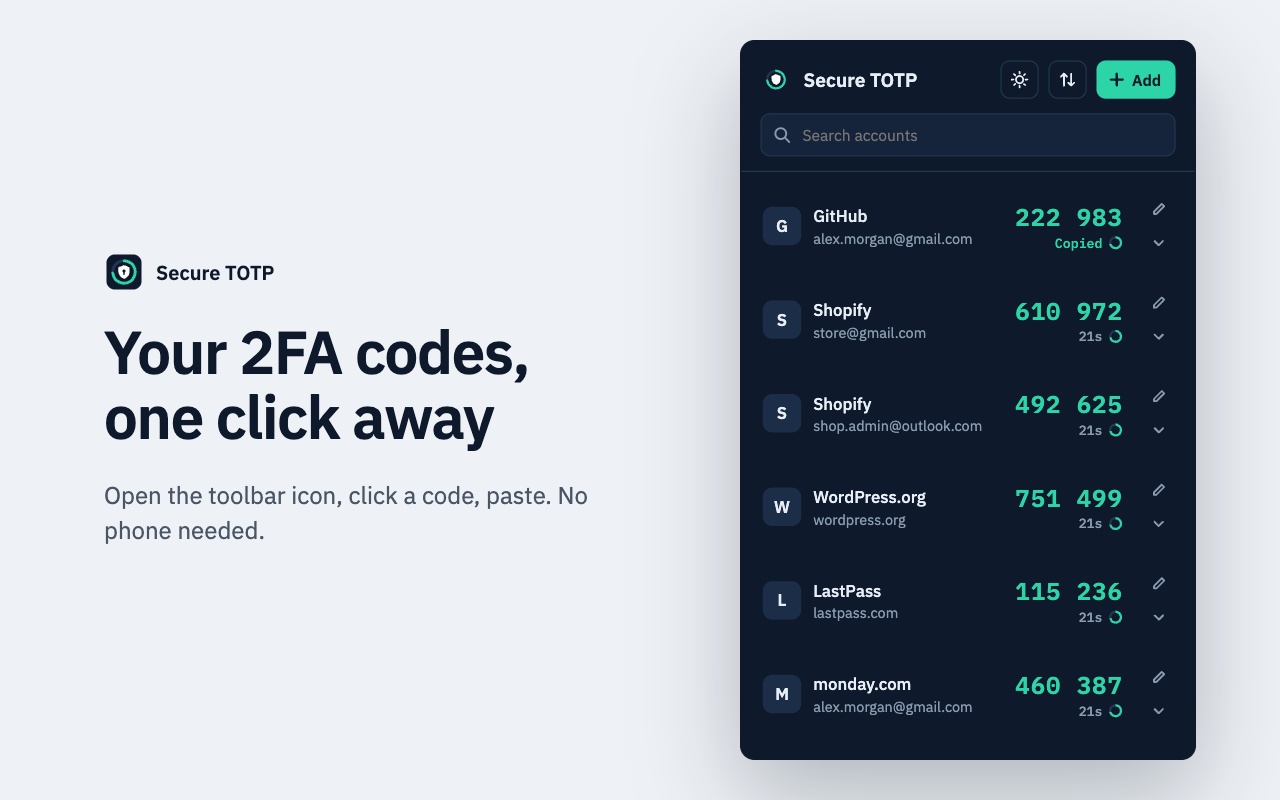
Eliminate constant phone pickups during desktop work. Secure TOTP Authenticator runs right inside Google Chrome on Windows, macOS, and Linux—combining instant account search, one-click OTP copying, and encrypted local backup exports with zero cloud sign-up.
Secure TOTP Authenticator is an independent browser extension developed by GreeLogix. It is not affiliated with, endorsed by, or officially connected to Google or Google Authenticator.
Why Keep an Authenticator on Your Computer?
Modern software workflows demand frequent multi-factor authentication prompts—SSH portals, cloud IAM consoles, client Shopify stores, domain registrars, and staging dashboards. Typing 6 digits manually from a mobile screen dozens of times a day creates friction and increases mistakes during 30-second expiry windows.
A desktop authenticator also provides a crucial secondary access path if your smartphone battery dies, gets damaged, or cannot be kept beside you in quiet office environments.
How TOTP Works on Your PC
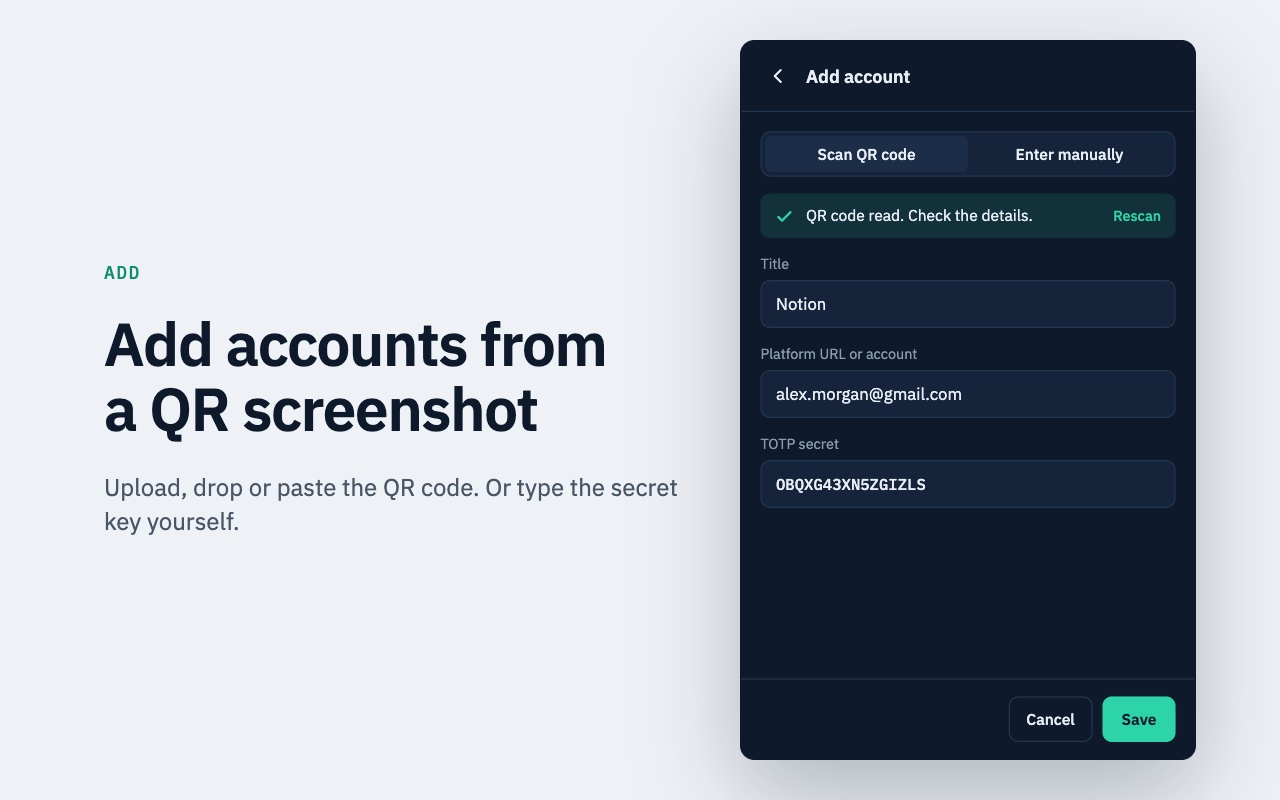
Time-Based One-Time Passwords (defined in RFC 6238) do not require server polling or SMS delivery. When you scan a website's QR setup screenshot or paste a shared secret into Secure TOTP, your PC stores that Base32 key locally.
Every 30 (or 60) seconds, your computer combines that key with the current Unix timestamp via HMAC-SHA1/256/512 to compute the exact same temporary passcode that the destination server expects. Learn the fundamentals in What Is TOTP?
Using Secure TOTP in Desktop Chrome
One-Click Code Copying
Click any 6-digit or 8-digit token row inside the popup to copy it cleanly into your PC clipboard with instant visual confirmation.
Instant Account Search
Type a domain or email alias into the search bar to filter long lists of work, staging, and personal logins in milliseconds.
True Offline Execution
Works anywhere—in air-gapped networks, flights, or disconnected setups—because OTP generation needs zero internet traffic.
Security Considerations When Storing 2FA Secrets on a Computer
Convenience should never compromise clarity about risk. Here is what changes when you keep an authenticator on Windows or Mac rather than solely on a phone.
Key Risks to Manage
- •Loss of Device Separation: If your saved passwords and TOTP codes sit in the same browser on the same PC, anyone with unlocked physical access or browser-stealing malware could reach both.
- •Shared or Public PCs: Never store personal or production 2FA tokens on shared family desktops, lab computers, or untrusted VMs.
- •Hardware Failure Without Backup: Because Secure TOTP does not upload secrets to any cloud server, a wiped SSD permanently deletes local tokens unless backed up.
Recommended PC Safeguards
- Enable Full-Disk Encryption: Turn on BitLocker (Windows) or FileVault (macOS) plus automatic short screen-lock timeouts.
- Selective Token Scope: Keep everyday developer/work tools in Chrome, while leaving ultra-critical root banking logins on a dedicated mobile device or hardware security key.
- Export Encrypted JSON Backups: Use Secure TOTP's password-protected `.json` export and store it offline on a USB drive or encrypted archive alongside website recovery codes.
Back Up Your PC Tokens With a Strong Password
Before upgrading Windows, switching laptops, or resetting Chrome, export your accounts using Secure TOTP's password-encrypted `.json` format. When restoring on your new machine, duplicates are skipped automatically.
Read the full authenticator backup playbook →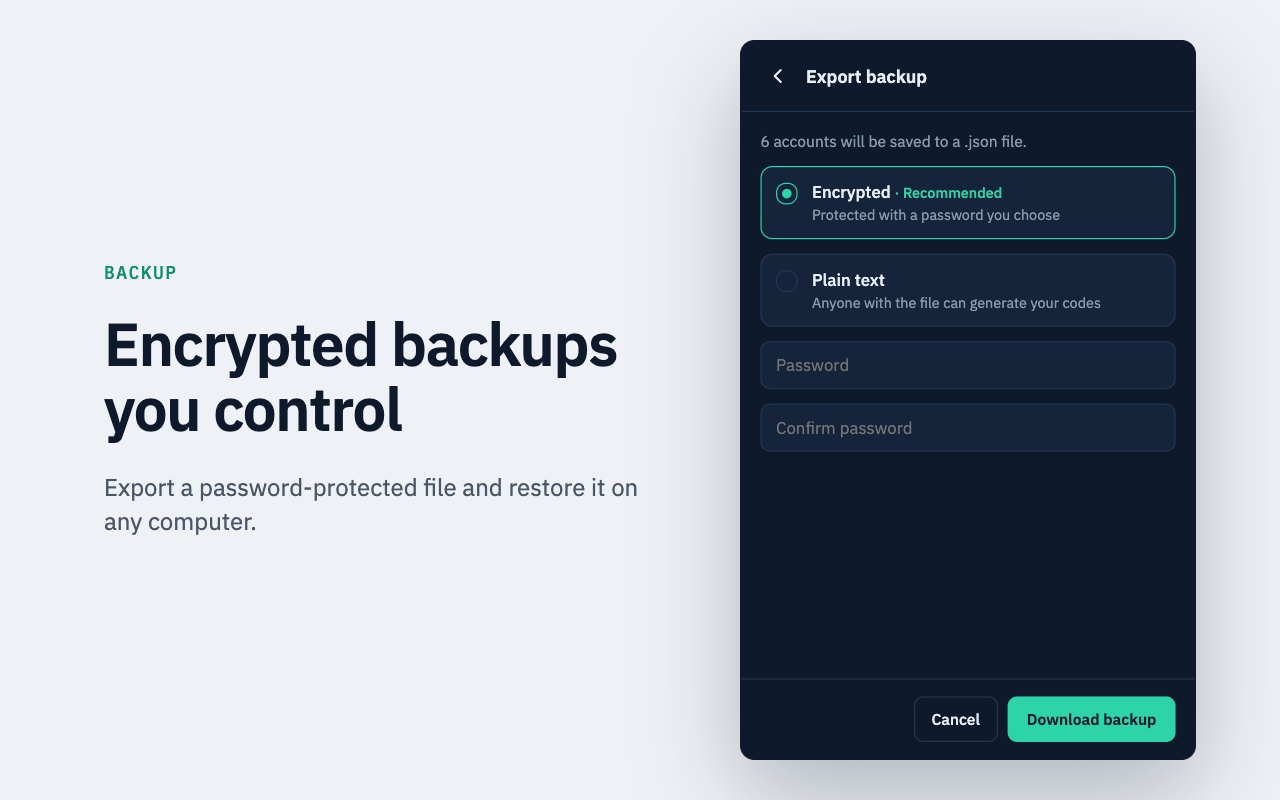

Add Offline 2FA Access to Your Desktop Browser
Lightweight Chrome extension for Windows, macOS, and Linux—search accounts fast, copy in one click, and maintain encrypted local backups.
Frequently Asked Questions
Direct answers covering compatibility, security boundaries, offline behavior, and backups.
Related Secure TOTP Guides & Resources
Explore specialized guides on desktop 2FA, offline TOTP generation, and backup security.
Extension Workflows & Compatibility
Generate 2FA codes inside Chrome and import selected accounts from Google Authenticator transfer QR codes without removing them from your phone.
Understand how Secure TOTP computes 6- and 8-digit verification codes locally using your device clock and secret key—even completely offline.
Explore QR screenshot scanning, instant search, live 30s/60s countdowns, and objective workflow comparisons between browser and mobile authenticators.
2FA & TOTP Educational Guides
Compare desktop options for accessing Google Authenticator 2FA codes on Windows and macOS, plus the Chrome workflow step-by-step.
Why backups matter, how recovery codes differ from TOTP exports, encrypted vs plain-text .json files, and safe offline backup storage.
An objective threat-model review covering local storage, OS disk encryption, malware exposure, single-device risk, and recovery code hygiene.
Practical recovery paths when a phone or laptop is lost or wiped: using provider recovery codes, encrypted backups, and prevention habits.
Install Secure TOTP Authenticator on Your Computer
Works natively inside Chrome on Windows, macOS, and Linux with zero account signup.
Add to Chrome — Free