What Happens During a Google Authenticator Export
Google Authenticator packs selected accounts into an encoded otpauth-migration:// QR payload. Exporting is a non-destructive read operation: scanning or importing that QR image elsewhere creates an additional copy of those keys—it never erases the accounts from your smartphone unless you manually delete them yourself.
Part 1: Export Your Transfer QR Code on Mobile
- Open Google Authenticator on Android or iOS and tap the top-left menu icon.
- Select Transfer accounts, then tap Export accounts.
- Confirm your device PIN, Face ID, or fingerprint.
- Choose only the specific accounts you want to copy to Chrome (up to 10 accounts fit neatly per QR code) and tap Export.
Part 2: Import Selected Accounts Into Secure TOTP
- Save the exported QR image temporarily to your desktop (via encrypted transfer, AirDrop, or USB) without posting it in any cloud chat.
- Open Secure TOTP Authenticator in Chrome and click the Import/Export icon at the top right.
- Choose Import from Google Authenticator and upload the transfer QR image.
- Review the detected account list: uncheck anything you want left off the PC, note automatic 'Already added' duplicate detection, and click Import.
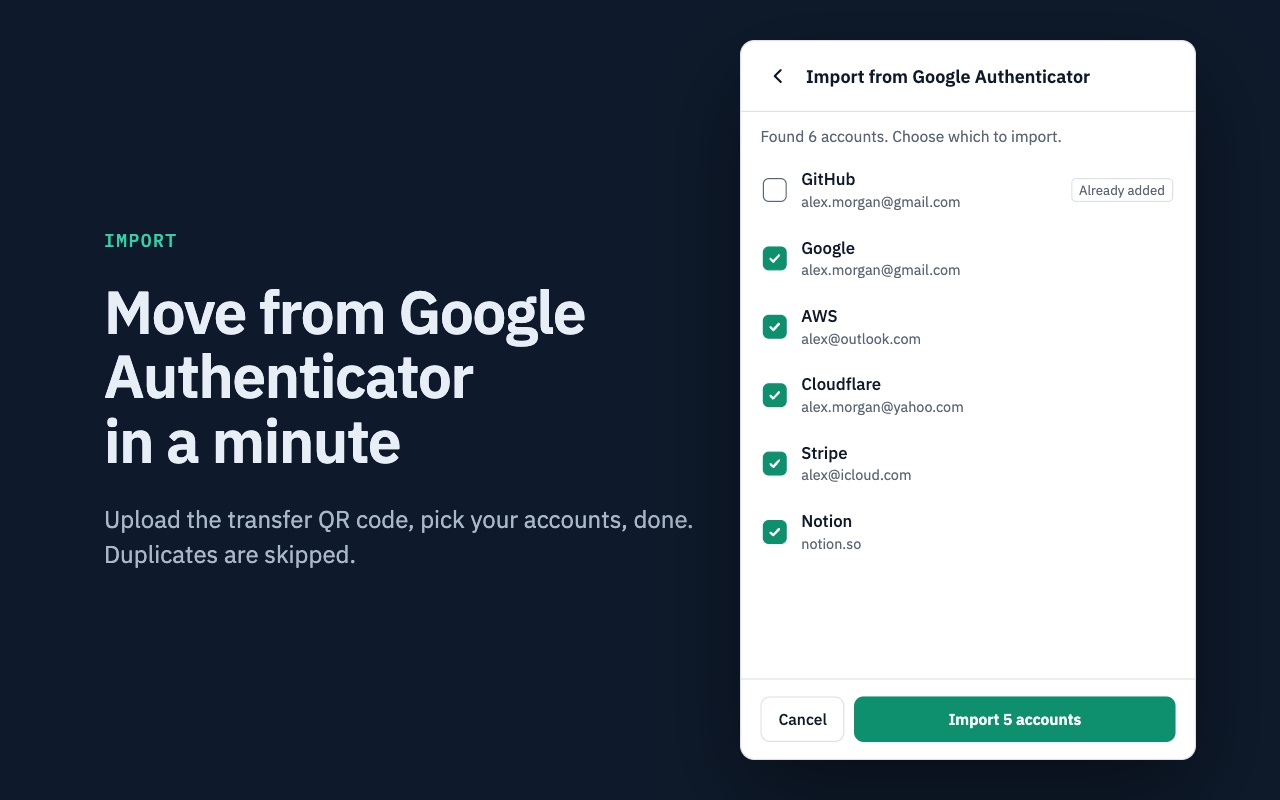
An exported QR image contains unencrypted TOTP seeds for every account inside it. Once Secure TOTP confirms the import and displays live matching 6-digit codes, permanently delete the temporary screenshot from your phone gallery, Downloads folder, and Trash/Recycle Bin.
Part 3: Verify Parity & Export an Encrypted Backup
Compare one live code in Chrome side by side with Google Authenticator on your phone. If both clocks are accurate, both apps display the exact same 6 digits every 30 seconds. Finish by exporting a password-protected encrypted authenticator backup file before deleting your temporary transfer image.