The Catch: There Is No Official Desktop App
Google publishes Google Authenticator solely for Android and iOS—there is no native Windows executable, macOS app, or official Google Chrome extension. Whenever you see sites advertising 'Google Authenticator.exe downloads', treat them with skepticism.
Fortunately, Google Authenticator is built on open RFC 6238 TOTP standards. That means any trustworthy, standards-compliant desktop or browser authenticator holding your same QR secret produces the exact same 6-digit login code.
Practical Options for Using 2FA Codes on Your PC
- Dedicated Browser Extension (Fastest Web Workflow): Install an independent Chrome extension like Secure TOTP Authenticator, copy selected codes via export QR, and copy OTPs directly beside open tabs.
- Desktop Password Manager Vaults: Built-in TOTP fields inside desktop password apps (note: places password and 2FA in the exact same app).
- Phone Mirroring / Emulators: Running Android emulators simply to see a code introduces heavy overhead and fragile backup workflows.
Step-by-Step: The Chrome Extension Workflow
- Install Secure TOTP Authenticator from the Chrome Web Store and pin it to Chrome's toolbar.
- Export selected accounts via Transfer accounts -> Export accounts inside Google Authenticator on your phone.
- Import that transfer QR image locally inside Chrome—your mobile tokens stay completely intact.
- Click any account row in Chrome to copy the active code to your clipboard in one click.
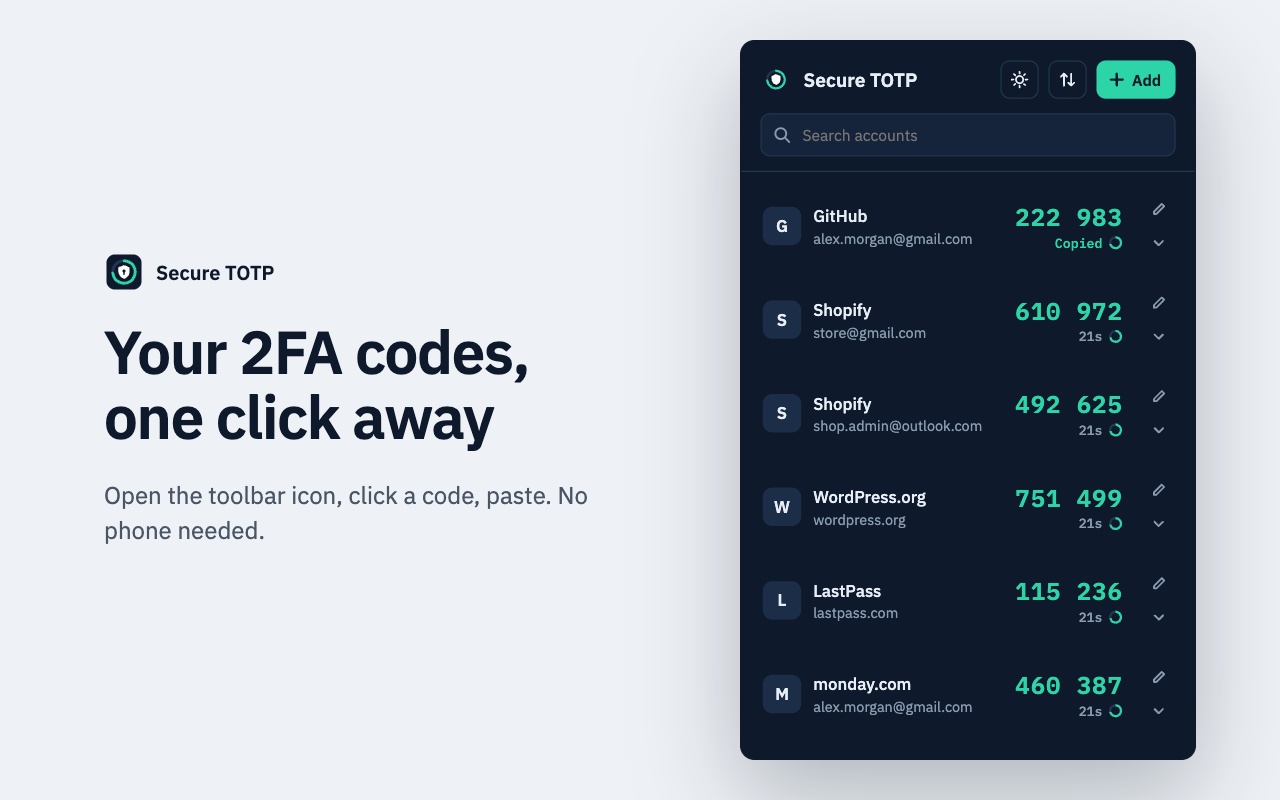
See the complete desktop migration walkthrough on our dedicated Google Authenticator for Chrome page, including duplicate detection and privacy safeguards.
Only store 2FA keys on personal or managed company workstations protected by OS screen locks, full-disk encryption, and strong malware hygiene. Export an encrypted JSON backup regularly.