Google Authenticator for Chrome on Desktop
Looking to access your Google Authenticator 2FA codes right inside Google Chrome on your PC or Mac? Because Google does not publish an official desktop browser extension, Secure TOTP Authenticator gives you an independent way to generate matching codes locally and copy them in one click.
Why Keep Authenticator Codes Ready in Chrome?
If you log into GitHub, AWS, Google Workspace, Cloudflare, WordPress, or Stripe dozens of times a day, reaching for a phone across your desk breaks focus—especially when your phone is charging across the room or lacks cellular reception.
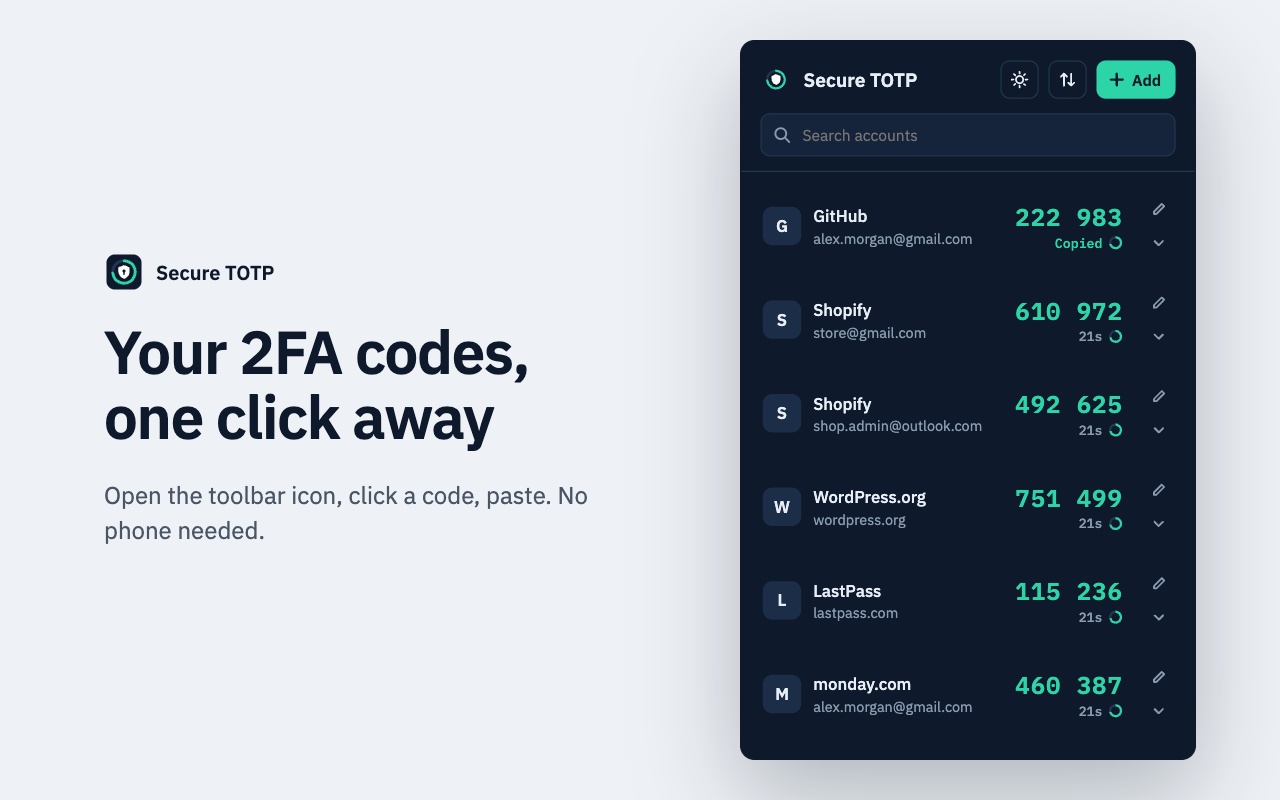
With a Chrome authenticator extension, those exact same time-based verification codes sit pinned to your browser toolbar. Because RFC 6238 allows multiple devices to hold the same shared secret key, having work tokens in Chrome does not lock you out of Google Authenticator on your phone.
Phone Copy vs. Chrome Extension Copy
Google Authenticator continues generating identical codes on your mobile device. Importing never revokes or deletes existing mobile tokens.
Tick only the accounts you want on your workstation—such as work DevOps or client logins—and leave banking accounts strictly mobile-only if preferred.
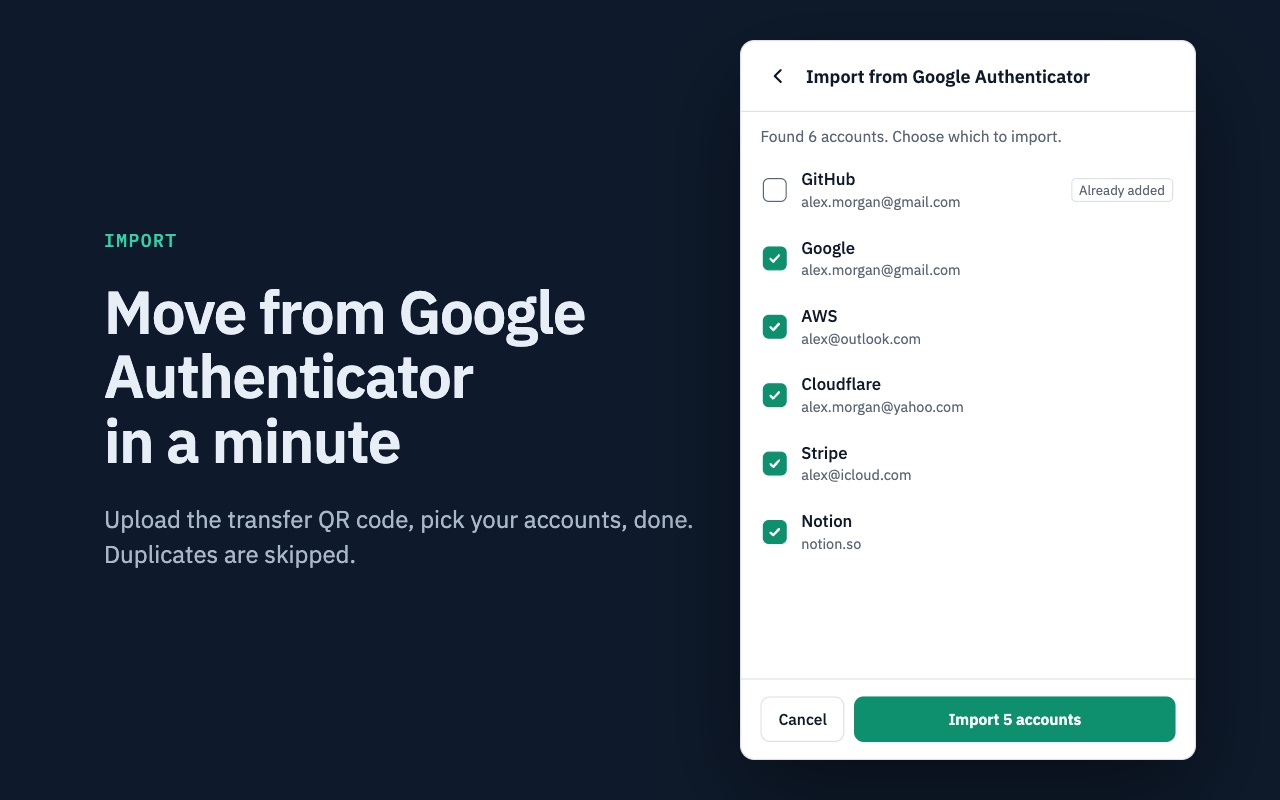
Upload the transfer QR image directly into Secure TOTP to avoid transcription errors with long Base32 secrets.
How to Transfer Accounts Using Google Authenticator Export QR Codes
Follow these four verified steps to bring selected tokens from Google Authenticator into Chrome locally.
Open Transfer Accounts in Google Authenticator
On your phone, open the Google Authenticator menu, tap Transfer accounts, and choose Export accounts. Authenticate with your PIN or biometrics, select the accounts to copy, and view the generated transfer QR code.
Capture the Export QR Image Safely
Save or transfer that QR image securely to your computer (and delete any temporary screenshot file once your import finishes so plain QR images do not linger in your Downloads folder).
Upload into Secure TOTP & Pick Accounts
Click the import icon inside Secure TOTP, select Import from Google Authenticator, and upload the QR image. Secure TOTP parses the otpauth-migration payload locally and lets you check or uncheck individual accounts while automatically skipping duplicates.
Verify Live Codes & Export an Encrypted Backup
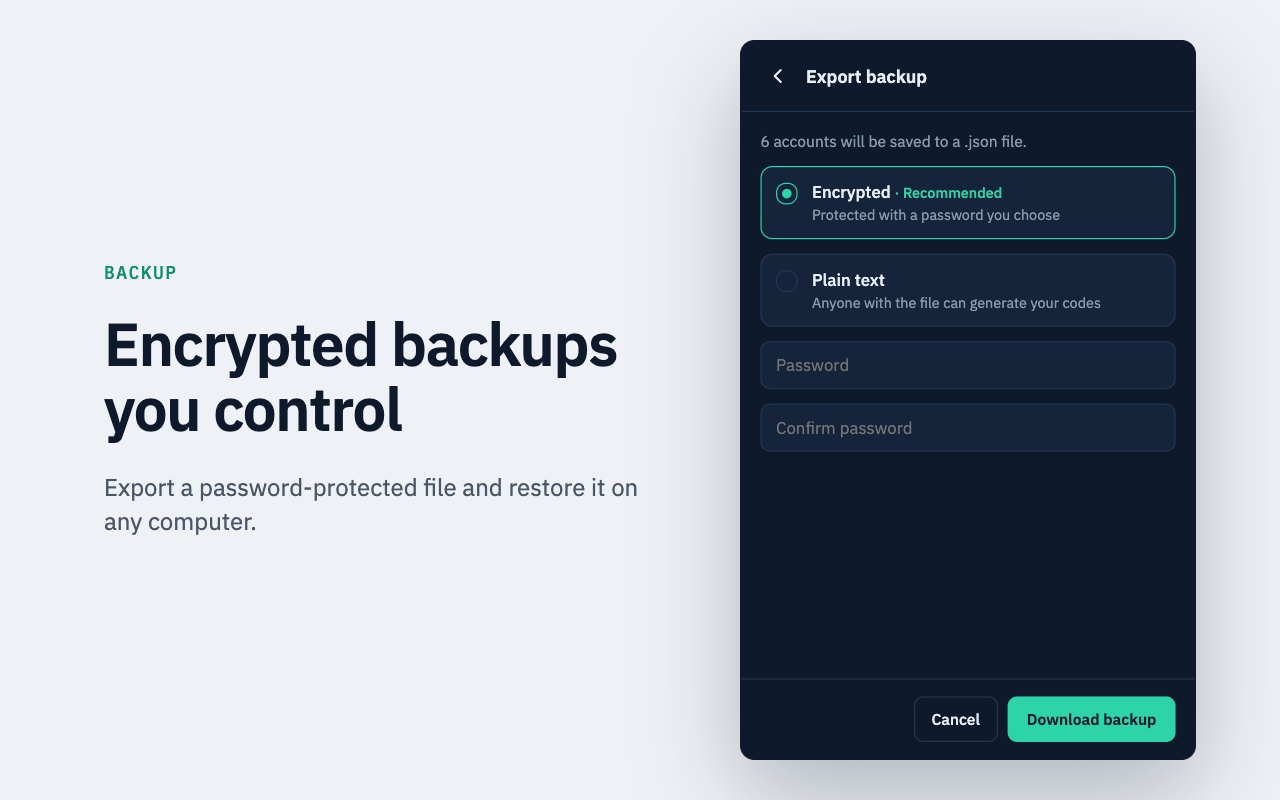
Compare the 6-digit code in Chrome against your phone to confirm both clocks match, then generate a password-protected .json backup file and delete temporary transfer images.
Offline Code Generation & Local Storage
After your accounts are imported, Secure TOTP never sends secrets over the internet to calculate codes. Every 30-second or 60-second code is computed directly inside your browser using your system clock.
Because accounts live locally inside your Chrome profile—with no cloud sync or remote server backup—we recommend reading our guide on backing up authenticator codes safely and keeping your encrypted `.json` backup plus website recovery codes in a safe place.

Ready to Use Your 2FA Codes in Chrome?
Add Secure TOTP Authenticator in seconds, import selected accounts from your Google Authenticator QR export, and generate codes offline.
Frequently Asked Questions
Direct answers covering compatibility, security boundaries, offline behavior, and backups.
Related Secure TOTP Guides & Resources
Explore specialized guides on desktop 2FA, offline TOTP generation, and backup security.
Extension Workflows & Compatibility
Run an RFC 6238 desktop authenticator inside Chrome on Windows, macOS, or Linux with fast search, one-click copying, and computer security best practices.
Explore QR screenshot scanning, instant search, live 30s/60s countdowns, and objective workflow comparisons between browser and mobile authenticators.
Side-by-side comparison of mobile-first Google Authenticator vs. a browser-native TOTP extension with encrypted local JSON backup control.
2FA & TOTP Educational Guides
Compare desktop options for accessing Google Authenticator 2FA codes on Windows and macOS, plus the Chrome workflow step-by-step.
Walk through exporting transfer QR codes from Google Authenticator, importing selected tokens into Secure TOTP, and keeping phone copies intact.
Why backups matter, how recovery codes differ from TOTP exports, encrypted vs plain-text .json files, and safe offline backup storage.
An objective threat-model review covering local storage, OS disk encryption, malware exposure, single-device risk, and recovery code hygiene.
Copy Google Authenticator-Compatible Codes in One Click
Free Chrome extension with offline TOTP calculation, selective QR import, and local encrypted JSON backups.
Add to Chrome — Free